
This guide explains how to turn on maximum logging for the LGB application. There are two files to edit: one for the GUI (the interface you see on screen) and one for the service (the background process). The steps are the same for both files.
Before You Start
You will need:
- Access to the folder containing the config files
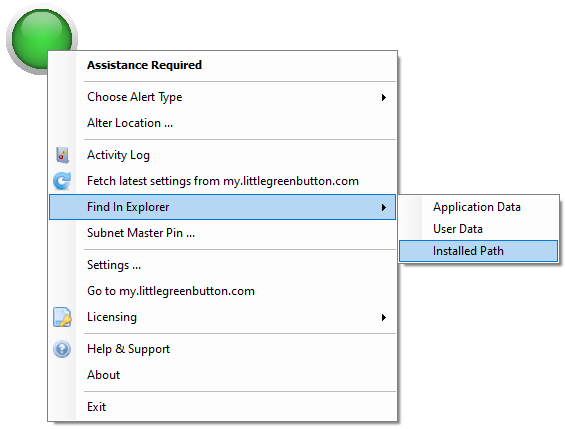
Hold down the Shift key, and right click the floating desktop button to 'Find in Explorer', the 'Installed Path'.
- A plain text editor — Notepad works fine (do not use Word)
The two files are:
lgbgui.dll.configlgbsvc.dll.config
Important: These files contain structured code. Change only the specific words listed in this guide. Do not add, remove, or rearrange anything else.
Part 1 — lgbgui.dll.config
Step 1: Open the file
- Navigate to the folder containing the config files.
- Right-click
lgbgui.dll.config. - Select Open with → Notepad.
Step 2: Turn up the logging level
In Notepad, press Ctrl + F to open the Find box.
Type the following and press Find Next:
name="DefaultSwitch" value=You will land on a line that looks like this:
<add name="DefaultSwitch" value="Warning" />Change the word
WarningtoVerbose, so the line reads:<add name="DefaultSwitch" value="Verbose" />
Step 3: Turn up the file log filter
Press Ctrl + F again.
Type the following and press Find Next:
EventTypeFilter" initializeData=You will land on a line that looks like this:
<filter type="System.Diagnostics.EventTypeFilter" initializeData="Warning" />Change the word
WarningtoVerbose, so the line reads:<filter type="System.Diagnostics.EventTypeFilter" initializeData="Verbose" />
Step 4: Save the file
Press Ctrl + S to save. Close Notepad.
Part 2 — lgbsvc.dll.config
Step 1: Open the file
- Right-click
lgbsvc.dll.config. - Select Open with → Notepad.
Step 2: Turn up the logging level
This file has two switches to update.
Press Ctrl + F, type the following, and press Find Next:
name="DefaultSwitch" value=You will land on a line that looks like this:
<add name="DefaultSwitch" value="Information" />Change
InformationtoVerbose:<add name="DefaultSwitch" value="Verbose" />Without closing the Find box, press Find Next again to move to the next switch:
<add name="IRCManagerSwitch" value="Information" />Change
InformationtoVerbose:<add name="IRCManagerSwitch" value="Verbose" />
Step 3: Turn up the file log filter
Press Ctrl + F, type the following, and press Find Next:
EventTypeFilter" initializeData=Press Find Next until you reach a line that reads:
<filter type="System.Diagnostics.EventTypeFilter" initializeData="Off" />Note: There may be other lines with this pattern before it — you are looking specifically for the one that says
"Off".Change
OfftoVerbose:<filter type="System.Diagnostics.EventTypeFilter" initializeData="Verbose" />
Step 4: Save the file
Press Ctrl + S to save. Close Notepad.
Verification Checklist
Once both files are saved, confirm the following before closing:
| File | What to check | Should now read |
|---|---|---|
| lgbgui.dll.config | DefaultSwitch value | Verbose |
| lgbgui.dll.config | FileLog EventTypeFilter | Verbose |
| lgbsvc.dll.config | DefaultSwitch value | Verbose |
| lgbsvc.dll.config | IRCManagerSwitch value | Verbose |
| lgbsvc.dll.config | FileLog EventTypeFilter | Verbose |
What These Changes Do
- Verbose is the highest level of detail available. It means the application will write every internal event to the log file — not just errors and warnings, but informational messages and fine-grained diagnostic output as well.
- The switch controls what the application is willing to record.
- The filter controls what actually gets written to the log file.
- Both need to be set to
Verbosefor full logging to reach the file.
Where to Find the Log Files
Little Green Button writes two sets of log files, in two different locations.
The quickest way to open either location is to hold Shift and right-click the Little Green Button icon (either the floating button on your desktop or the icon in the notification area at the bottom-right of the screen), then choose Find in Explorer and select the relevant folder.
Alternatively, you can navigate to them directly:
Service log (lgbsvc) — records what the background service is doing:
C:\ProgramData\LGB3\logs\3.20.9588\
The file will be named lgbsvc-YYYY-MM-DD.log, where YYYY-MM-DD is today's date (for example, lgbsvc-2026-06-30.log).
Application log (lgbgui) — records what the on-screen button application is doing:
C:\Users\Username\AppData\Local\LGB3\3.20.9588\
The file will be named lgbgui-YYYY-MM-DD.log.
Note: The version number in the path (e.g.
3.20.9588) will match the version of LGB installed on the machine. If you are unsure, use the Shift + right-click method above to open the correct folder automatically.