For administrative purposes, various MyLGB Users can be invited for access to The MyLGB Portal.
If an additional layer of security is required, these users are able to enable Two Factor Authentication, to be prompted to enter a one-time password whenever they log on to their MyLGB Account.
Enabling Two-factor authentication
Head over to https://my.littlegreenbutton.com/profile and enable the switch Email 2FA under the header Two-factor authentication.

Now, when next logging on to the MyLGB Portal, a prompt will be shown to enter a six-digit code to verify their identity.
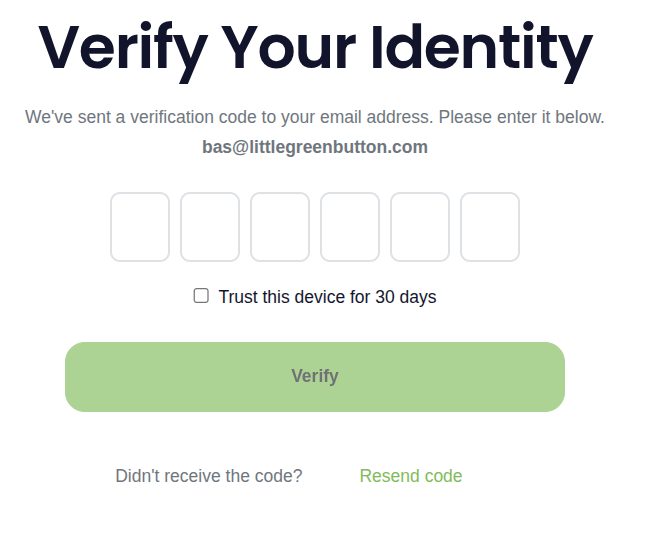
This code will have been emailed to the email address of the user.
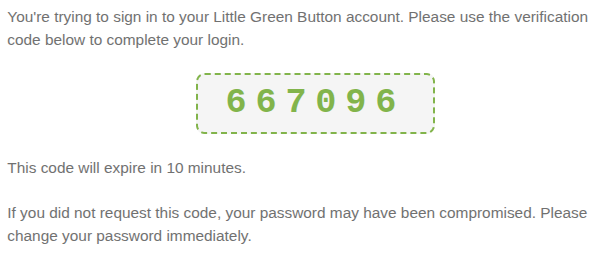
Remember this code, and type it in to the verification prompt, or copy and paste it. The code will be valid for 10 minutes. After this time, a new code will have to be requested via the Resend code link.
Check the box next to Trust this device for 30 days to not be prompted for a 2FA code again until the login session expires after 30 days.
Disabling Two-factor authentication
Head over to https://my.littlegreenbutton.com/profile and disable the switch Email 2FA under the header Two-factor authentication. Please keep in mind the portal will remain accessible until logged out.

Enforcing Two-factor authentication
As a MyLGB user with the role of Admin, it is possible to control access to your MyLGB Portal by enforcing your users to have 2FA enabled.

If this setting is enabled, and a user has not opted in to 2FA in their profile, they will not be able to enter the MyLGB Portal until doing so.